 By Alex
 Gemini for macOS adds voice control and smart dictation
Gemini for macOS is rolling out voice dictation and screen-aware actions that let users rewrite, summarize and create from the window they are using.
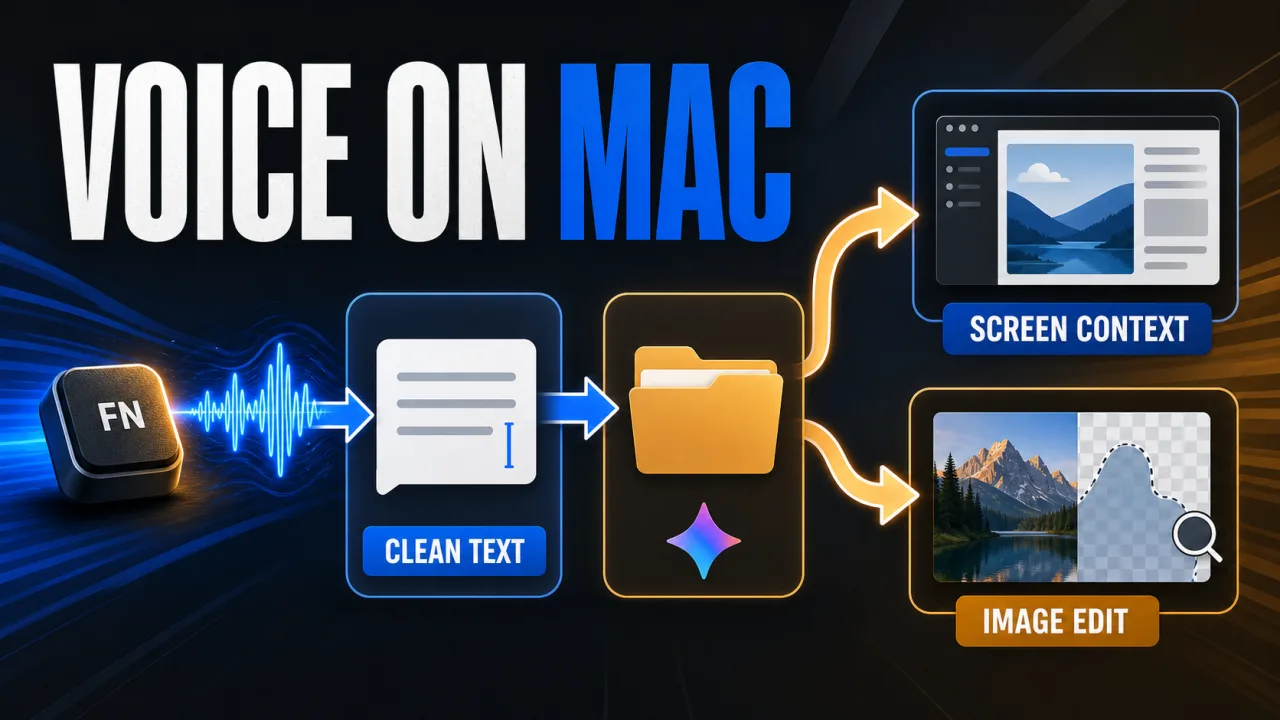
Gemini for macOS is adding a voice layer that works inside the window already on screen. The feature combines intelligent dictation with optional screen-aware reasoning, so a user can insert cleaned-up speech at the cursor or ask Gemini to summarize, rewrite and create from visible content. Google’s announcement confirms the rollout, while 9to5Google’s report details the macOS controls and version requirement.
Definition: Gemini voice control for macOS is an in-place input and assistance feature that accepts spoken instructions from a desktop window.
Example: A user can long-press Fn, dictate a message with corrections, and have Gemini place the polished text at the current cursor position.
Key takeaway: Gemini intelligent dictation cleans up speech; optional Gemini reasoning uses screen context for larger tasks.
Business impact: Gemini’s announced examples move from speech to formatted text, document summaries and image edits inside the current Mac workspace; operators should test dictation first and enable reasoning only for workflows that need visible files, text or images.
What Gemini for macOS now does
Gemini for macOS now supports voice control from anywhere on the desktop, with the rollout beginning globally in English. Google describes long-pressing the Fn key to activate the voice interface, and 9to5Google reports a second entry point through the screen-sharing button at the end of the Ask Gemini prompt. Mac users can therefore test the update without leaving the document, message or design surface they are already using.
Gemini for macOS shows the active voice interface as a floating pill with a waveform at the bottom of the screen. The visible waveform gives the user a listening-state cue while the current app remains in view, which is the concrete reason to treat the feature as in-place assistance rather than as a separate chat destination. When testing the rollout, watch for the waveform before speaking and keep sensitive content unselected unless the requested task needs it.
Gemini for macOS ties the rollout to version 1.88 of the app. Google says the capability is becoming available to users in English and that additional languages are coming soon, so Mac users should update the app and treat missing language support or controls as a staged availability condition rather than as proof that the feature is absent from the product.
How Gemini for macOS starts voice control
Gemini for macOS uses two announced entry points: a long press on the Fn key and a screen-sharing button at the end of the Ask Gemini prompt. The Fn shortcut is the faster path for a user already typing in another app, while the prompt button makes the screen-aware route visible in Gemini’s own interface. Start with the shortcut or button that appears in version 1.88, then verify the floating waveform before giving Gemini an instruction.
Gemini for macOS keeps the initial voice action separate from deeper reasoning. The app can use voice input for intelligent dictation, while Google says screen-aware work requires Gemini reasoning to be enabled in settings. That boundary is visible in the product behavior: use the default dictation path for text at the cursor, and enable reasoning only when the instruction depends on selected files, text or images.
How Gemini intelligent dictation changes speech input
Gemini intelligent dictation converts spoken words into clean, formatted text at the current cursor position. Google says Gemini removes filler sounds such as “ums” and “ahs” and accounts for mid-sentence corrections, which gives Mac users a way to speak naturally while receiving a more finished draft. The useful action is to place the cursor where the text belongs, dictate the complete thought, and review the inserted result in the same app.
Gemini intelligent dictation is therefore different from a transcript that preserves every hesitation verbatim. The announced behavior is to infer the intended wording around corrections and insert the cleaned result where the cursor is active; 9to5Google compares the purpose with the polished dictation experience reported for Gboard Rambler. Mac users should evaluate the output as edited text and proofread names, numbers and domain-specific terms before sending it.
| Gemini mode | What it does | User control |
|---|---|---|
| Intelligent dictation | Inserts cleaned-up speech at the cursor | Available when voice control is activated |
| Screen-aware assistance | Uses visible files, text or images for a requested task | Requires Gemini reasoning in settings |
| Voice entry point | Opens the floating waveform interface | Long-press Fn or use the screen-sharing button |
What can Gemini for macOS do with screen context?
Gemini for macOS can use the current screen for more than dictation when Gemini reasoning is enabled. Google’s announcement names local files, images and documents as the material Gemini can work from, so the user can highlight relevant content and describe the desired result. The practical test is narrow: select only the source material needed for the task, state the output format, and inspect Gemini’s result before using it. Related reading: Gemini 3.6 Flash cuts token use as Google starts Gemini 4. See also Gemini 3.7 Flash pairs stronger agents with half-price input. See also Gemini Canvas Turns Google Sheets Into Visual Dashboards.
Gemini for macOS can summarize local information
Gemini for macOS can extract and summarize highlighted local files, images or documents after a user gives a specific voice instruction. Google’s example asks Gemini to read veterinary files and turn a dog’s medical history into an email for a kennel, proving the flow from selected source material to a requested draft. Users who need this workflow should select the relevant files, name the audience and review the summary before sharing it.
Gemini for macOS can rewrite selected text
Gemini for macOS can rewrite highlighted text and adjust its tone through a spoken instruction. Google’s example asks Gemini to turn notes into an executive summary with a TL;DR at the top, which demonstrates a structural rewrite rather than simple transcription. The concrete workflow is to highlight the notes, state the desired audience and format, then compare the inserted version with the original before publishing it.
Gemini for macOS can generate or edit images
Gemini for macOS can create or modify images using a visual reference already on the desktop. Google gives the example of turning an illustration into a dark-mode version, showing that the announced workflow supports an iterative visual request rather than only text entry. Users should identify the reference image and describe the intended change precisely, then inspect the generated result for visual errors before using it.
Gemini for macOS’s screen-aware actions are context-aware assistance, not proof of unrestricted autonomous control. Google’s examples are bounded to highlighted files, text and images, while the broader distinction between software that only answers and software that can work through a goal is covered in What Is an AI Agent?. Operators should map each voice instruction to an explicit source, output and review step.
How the Gemini for macOS rollout works
Gemini voice control is rolling out globally in English through the Gemini app for macOS, with more languages planned. Google’s announcement and the 9to5Google report both describe a rollout rather than a universal instant release, so Mac users should update to version 1.88, test the Fn shortcut and wait for the controls to appear on the account they intend to use.
Gemini for macOS has different access boundaries for dictation and screen-aware work. Intelligent dictation handles spoken input and places the result at the cursor, while screen-aware tasks require Gemini reasoning to be enabled in settings. Users evaluating the feature should test those two modes separately and record which language, account and app version produced each result.
What Gemini for macOS changes for desktop work
Gemini for macOS moves voice assistance closer to the place where the user is already editing, reading or designing. Google’s concrete examples cover formatted speech, a selected-document summary, an executive brief from notes and a dark-mode image edit, so the update’s value is visible in the distance between a spoken instruction and the next in-place result. Teams should measure that distance on one real workflow before expanding the feature.
Gemini for macOS is less about replacing the keyboard than about reducing the distance between intent and the next edit. Users can speak the transformation they want while the relevant text, file or image remains on screen, then inspect the result in the same working context. For a related voice-AI pattern where speech and external actions share one live interaction, see Nemotron VoiceChat brings live tool calls to open speech AI.
Gemini for macOS still has rollout and scope limits. Google describes English availability, an opt-in setting for context-aware reasoning and examples limited to visible content; it does not promise identical behavior across every language or account immediately. Teams should therefore test the exact Mac workflows they care about and keep a human review step for summaries, rewrites and generated images.
Gemini for macOS bottom line
Gemini for macOS is adding two related capabilities: polished dictation for in-place writing and screen-aware reasoning for voice-directed summaries, rewrites and image edits. Google’s examples establish the available task types, while version 1.88, English-first rollout and the separate reasoning setting define the current boundaries. Mac users should begin with one low-risk workflow and compare both modes.
The practical mental model for Gemini for macOS is a two-step one. Use voice control as intelligent dictation when the goal is to place clean text at the cursor; enable Gemini reasoning when the goal depends on files, text or images already visible on the screen. That distinction gives operators a concrete test plan without assuming that the staged rollout already supports every language or account.
FAQ
Does Gemini for macOS only transcribe speech?
No. Gemini for macOS uses intelligent dictation to clean up speech and place the result at the current cursor, but it also offers screen-aware actions when Gemini reasoning is enabled. Google’s announced examples include summarizing selected local files, rewriting highlighted notes into an executive summary, and changing an illustration into a dark-mode version. The two modes have different requirements: dictation is the basic voice path, while screen-aware work depends on the reasoning setting. Users should test them separately and review every generated result before sharing or publishing it.
How is Gemini dictation different from ordinary speech-to-text?
Gemini intelligent dictation is designed to produce a polished draft rather than preserve every hesitation exactly as spoken. Google says Gemini removes filler sounds such as “ums” and “ahs” and accounts for corrections made in the middle of a sentence, then inserts formatted text at the active cursor. 9to5Google compares the purpose with the polished dictation experience reported for Gboard Rambler. Mac users should still proofread names, numbers, technical terms and sensitive messages because the feature’s announced behavior is cleanup, not a guarantee of perfect transcription.
Can Gemini read files on a Mac?
Gemini for macOS can work with highlighted local files, images or documents when Gemini reasoning is enabled. Google’s example asks Gemini to read veterinary files and summarize a dog’s medical history in an email to a kennel, which establishes a selected-content workflow rather than unrestricted access to every file on a Mac. Users should select only the files required for the task, specify the intended output and inspect the result before sharing it. The announcement does not establish broader background access or autonomous control over the whole computer.
Is Gemini voice control available in every language?
Not yet. Google says Gemini voice control for macOS is rolling out globally in English and that more languages are coming soon. 9to5Google identifies version 1.88 as the release to update to, but the version number does not mean that every account or language receives the controls simultaneously. Mac users should install the latest Gemini app, try the Fn shortcut and check whether the floating waveform appears. If it does not, the account or language may still be waiting for rollout rather than lacking the product entirely.
Frequently asked questions
How do you activate Gemini voice control on macOS?
Gemini voice control on macOS starts when the user long-presses the Fn key anywhere on the desktop. Google says Gemini then presents a floating waveform pill at the bottom of the screen, and 9to5Google reports that users can also start it with the screen-sharing button at the end of the Ask Gemini prompt box. The practical step is to update the Gemini for macOS app, long-press Fn in the document or app where you want to work, and check whether the rollout has reached your account.
What does Gemini intelligent dictation do?
Gemini intelligent dictation turns spoken words into polished text at the current cursor position. Google says Gemini removes filler sounds such as ums and ahs and accounts for corrections made while speaking, so the result is not limited to a raw word-for-word transcript. The feature is designed for users who want to dictate a message, note or draft while staying in the application they already have open. Start with ordinary dictation first; screen-aware tasks need the separate Gemini reasoning setting.
Can Gemini for macOS act on what is on screen?
Gemini for macOS can act on visible context when Gemini reasoning is enabled in the app settings. Google describes highlighting local files, images or documents and asking Gemini to summarize them, rewriting selected text, or generating and editing an image from a visible reference. The announced examples include a dog’s medical history turned into an email, notes turned into an executive summary, and an illustration changed into a dark-mode version. Users should test the exact files and permissions their workflow requires rather than assume unrestricted Mac access.
Which macOS versions and languages support the feature?
Google says the new voice capability is rolling out globally in English through the Gemini app for macOS, with more languages coming soon. 9to5Google identifies version 1.88 as the app version to update to, but a version number does not mean every account receives the feature at the same time. Mac users should install the latest Gemini app, try the Fn shortcut, and treat missing controls as a rollout or language-availability issue until Google enables them for the account.
Alex
Founder & Lead AI Writer
Alex is the founder of Yowox and lead AI writer since 2024, breaking down complex information into clear, actionable insights for thousands of readers every day. Alex has built AI automation systems for businesses since 2024, focusing on AI agents, workflow automation, and business process optimization.
Save hours. Save thousands.
Practical guides, real workflows, and the latest AI and automation news that matters — straight to your inbox.