 By Alex
 Gemini Canvas Turns Google Sheets Into Visual Dashboards
Gemini Canvas can turn a reviewed Google Sheet into a dashboard prototype, but operators should verify the source data and distinguish Gemini Apps from Sheets canvas.
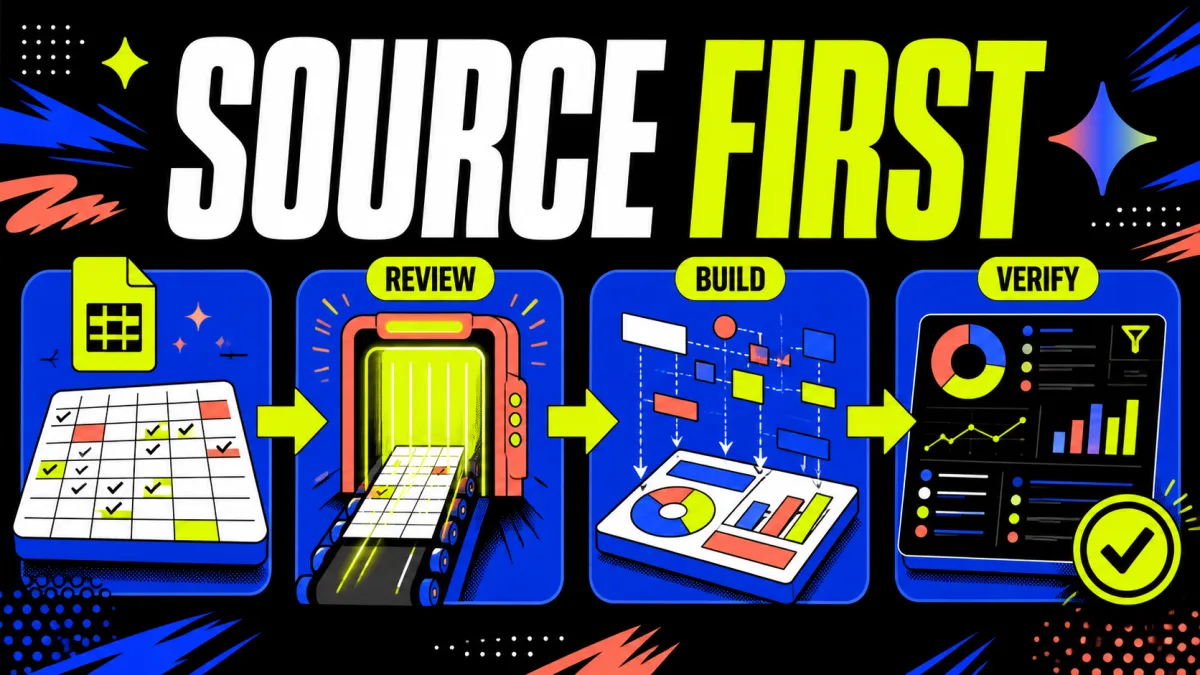
Gemini Canvas can turn a reviewed Google Sheet into a visual dashboard prototype, but the workflow is only as reliable as the source check before generation. The Rundown’s guide shows Gemini reading an attached spreadsheet, creating charts, filters and lists, and then producing a shareable Canvas artifact; it also warns that the recorded Gemini Apps workflow is not a live mirror of the source Sheet. The practical takeaway is to use Canvas to inspect a data story quickly, then verify every important number and label against the spreadsheet.
Definition: Gemini Canvas is a Gemini workspace for turning an attached file or prompt into an editable visual artifact.
Example: A reviewed project tracker can become a dashboard with totals, charts, filters and lists for a meeting audience.
Key takeaway: A polished Canvas result does not remove the need to validate the spreadsheet data behind it.
Business impact: Operators can prototype a clearer view of existing spreadsheet data without rebuilding the first draft in another tool, while keeping human review between generation and sharing.
What Gemini Canvas changes for spreadsheet work
Gemini Canvas changes the first step from manually rebuilding a spreadsheet view to describing the visual result a team needs. The Rundown workflow uses Gemini Apps with a Sheet attached, then asks for a focused dashboard built from the reviewed source; that makes the feature useful for operations leads, consultants and anyone who needs a readable summary before a meeting. The concrete action is to treat Gemini Canvas as a fast visualization layer, not as permission to skip data cleaning.
Gemini Canvas is not the only Google surface called Canvas. Google’s separate Sheets canvas announcement describes a feature inside Google Sheets that turns spreadsheet data into interactive mini-apps, including dashboards, study trackers and seating charts. Google says that surface is a read-write layer over the Sheet with synchronization between the canvas and the underlying data. The takeaway is to name the surface in a process document before comparing results or promising live updates.
Why should Gemini read the Sheet before building a dashboard?
Gemini should read the attached Sheet before building anything because a polished dashboard can hide a wrong attachment, ambiguous field or inconsistent value. The Rundown guide asks Gemini to list each tab’s purpose, explain key columns and flag blank, duplicate or inconsistent values before opening Canvas. Operators should run that inspection first and fix the source or narrow the request when Gemini cannot explain the data clearly.
A source-first inspection is especially important for business spreadsheets with fields such as opportunity, company, stage, owner, deal size, next-step date and notes. Those fields can support different dashboard views, but the field names alone do not prove that every row is complete or that every metric has the same meaning. The practical test is to compare Gemini’s tab and column summary with the Sheet before asking for charts or filters.
The inspection prompt can stay simple:
Read the attached spreadsheet before creating anything.

For each tab, list:
- what the tab is for
- the key columns and their meaning
- any blank, duplicate, or inconsistent values that could affect a dashboard

Do not create a Canvas yet. Tell me what I should fix first if the source is ambiguous.
What should a dashboard prompt specify?
A Gemini Canvas dashboard prompt should name the reviewed tabs, fields, audience and required views instead of asking for a generic business dashboard. The Rundown example asks for actual source values, useful totals, charts, filters and lists, plus a comparison between primary and secondary measures. Operators should specify those constraints and tell Gemini not to invent numbers, rows or metrics.
A focused prompt also gives Gemini a testable output. For example, a project-tracker dashboard might identify the tab, ask for totals by stage, filter by owner, list upcoming next-step dates and compare deal size with pipeline stage. The operator can then inspect each requested element against the source rather than judging the dashboard only by its visual polish.
Where can the Gemini Canvas workflow mislead operators?
The Gemini Apps workflow can mislead operators when a generated dashboard looks current even though the attached Sheet changes later. The Rundown guide explicitly treats its recorded Canvas as a generated snapshot and recommends returning with updated data or rebuilding from a fresh, reviewed attachment. Teams should therefore record the source version or review time and repeat the data check whenever the underlying spreadsheet changes.
The distinction matters because Google’s Sheets canvas documentation describes a different read-write surface with data synchronization, while the Gemini Apps workflow in the guide does not make that same live-mirror promise. Operators should not transfer behavior from one product surface to the other. The safe action is to test edits, refresh behavior, sharing and the View data path in the exact account before calling a Canvas dashboard live.
Gemini Canvas also has access and privacy boundaries. The guide recommends using a non-sensitive Sheet, removing information that should not be shared with an AI tool and checking administrator settings for work or school accounts. Google’s Gemini file-upload guidance likewise says that Drive access for organizational accounts depends on Workspace administrator enablement. A business should approve the file and account before it approves the dashboard.
How should a business test Gemini Canvas?
A business should test Gemini Canvas on one non-sensitive spreadsheet and one decision that the dashboard is meant to support. The source workflow provides a concrete sequence: attach or upload the Sheet, ask Gemini to explain the source, request one focused Canvas, compare major values with the Sheet, and test the expected filters before sharing. This sequence gives an operator an auditable checkpoint between data ingestion and presentation.
A practical test should answer four questions:
- Did Gemini identify the right tab, columns and records?
- Do the dashboard totals and labels match the Sheet?
- Do the filters expose the views the audience actually needs?
- Does the Canvas remain accurate after the source data changes?
The last question is the boundary between a useful prototype and a dependable operational view. Teams that want broader automation context can compare this visualization workflow with how AI agents connect to CRM, Google Sheets and Slack or use workflows to automate first to decide whether the dashboard is the right first project.
Gemini Canvas bottom line
Gemini Canvas gives spreadsheet users a faster route from structured rows to a readable visual prototype. The Rundown guide’s strongest lesson is not that Gemini can make a polished dashboard; it is that the user should make Gemini explain the source first, state the audience and measures precisely, and inspect the result before sharing it.
The main uncertainty is the product surface. Gemini Canvas in Gemini Apps with an attached Sheet and Sheets canvas inside Google Sheets are related but not interchangeable workflows. A responsible rollout should name the surface, limit the first test to non-sensitive data, verify the numbers and confirm synchronization behavior before anyone treats the Canvas as a live operational system.
FAQ
Does Gemini Canvas keep a Google Sheet updated in real time?
The Gemini Apps workflow described by The Rundown uses an attached spreadsheet to generate a Canvas artifact and does not present that artifact as a live mirror of the source Sheet. Google documents a separate Sheets canvas feature with a read-write interface over spreadsheet data and synchronization behavior. The difference is operationally important: a team should identify which Canvas surface it is using, test what happens after the Sheet changes, and avoid promising live updates based on a demonstration of the other surface.
What should I ask Gemini before creating a dashboard?
Ask Gemini to inspect the attached spreadsheet before it creates a Canvas. The first prompt should ask what each tab is for, which columns matter, and whether blank, duplicate or inconsistent values could affect the result. After Gemini explains the source, request one focused dashboard with named tabs and fields, a defined audience, specific totals, charts, filters and comparisons. State that Gemini must use the actual source values and must not invent numbers, rows or metrics. Review the summary before moving to visualization.
Can a business attach any Google Sheet to Gemini Canvas?
A business should attach only a non-sensitive Sheet that it is permitted to share with Gemini and should remove information it would not want an AI tool to process. Work and school accounts may require administrator enablement for Drive attachments and Gemini Apps access. The file should also be clear enough for Gemini to interpret: ambiguous columns, inconsistent values and duplicate records can produce a convincing but unreliable dashboard. Confirm the account, file permissions, data policy and feature availability before uploading the source.
Is Gemini Canvas the same as Sheets canvas?
No. Gemini Canvas in Gemini Apps starts from a Gemini chat and an attached file, while Sheets canvas is a separate feature created from inside Google Sheets. The Rundown guide treats its Gemini Apps result as a generated snapshot, whereas Google’s Sheets canvas documentation describes a read-write interface connected to spreadsheet data. Because entry points and data behavior differ, teams should test the exact surface they plan to use, document its sharing and editing controls, and check whether source changes appear in the visual result before relying on it operationally.
Frequently asked questions
Does Gemini Canvas keep a Google Sheet updated in real time?
The workflow described by The Rundown uses Gemini Canvas in Gemini Apps with an attached spreadsheet and treats the result as a generated artifact, not a live mirror of the source Sheet. Google documents a separate Sheets canvas feature that provides a read-write interface over spreadsheet data and can sync changes with the Sheet. Confirm which Canvas surface your account is using before promising live updates to a team.
What should I ask Gemini before creating a dashboard?
Ask Gemini to read the attached spreadsheet first and report what each tab is for, which columns matter, and whether blank, duplicate, or inconsistent values could affect the dashboard. Only after that review should you request a focused visualization. Name the tabs, fields, audience, totals, charts, filters and comparisons you need, and explicitly tell Gemini to use the source values rather than inventing numbers or rows.
Can a business attach any Google Sheet to Gemini Canvas?
A business should attach only a non-sensitive Sheet that it is allowed to share with Gemini and should remove information it would not want an AI tool to see. Google says Drive attachments for work or school accounts depend on Workspace administrator settings. Users should also check that the account, file access, data sensitivity and available Gemini feature match the workflow before uploading a spreadsheet.
Is Gemini Canvas the same as Sheets canvas?
No. The Rundown guide uses Gemini Canvas in Gemini Apps after attaching a Sheet, while Google separately documents Sheets canvas as a feature created from within Google Sheets. The two surfaces have different entry points and data behavior. A team should identify the surface it is testing, read its current help page, and verify sharing, editing and synchronization behavior in the exact account before designing a process around it.
Alex
Founder & Lead AI Writer
Alex is the founder of Yowox and lead AI writer since 2024, breaking down complex information into clear, actionable insights for thousands of readers every day. Alex has built AI automation systems for businesses since 2024, focusing on AI agents, workflow automation, and business process optimization.
Save hours. Save thousands.
Practical guides, real workflows, and the latest AI and automation news that matters — straight to your inbox.