 By Alex
 How to Build a Self-Updating Work Brain With Town
A practical five-step Town setup for turning Slack, connected work sources, routines, and a daily review into a self-updating work knowledge system.
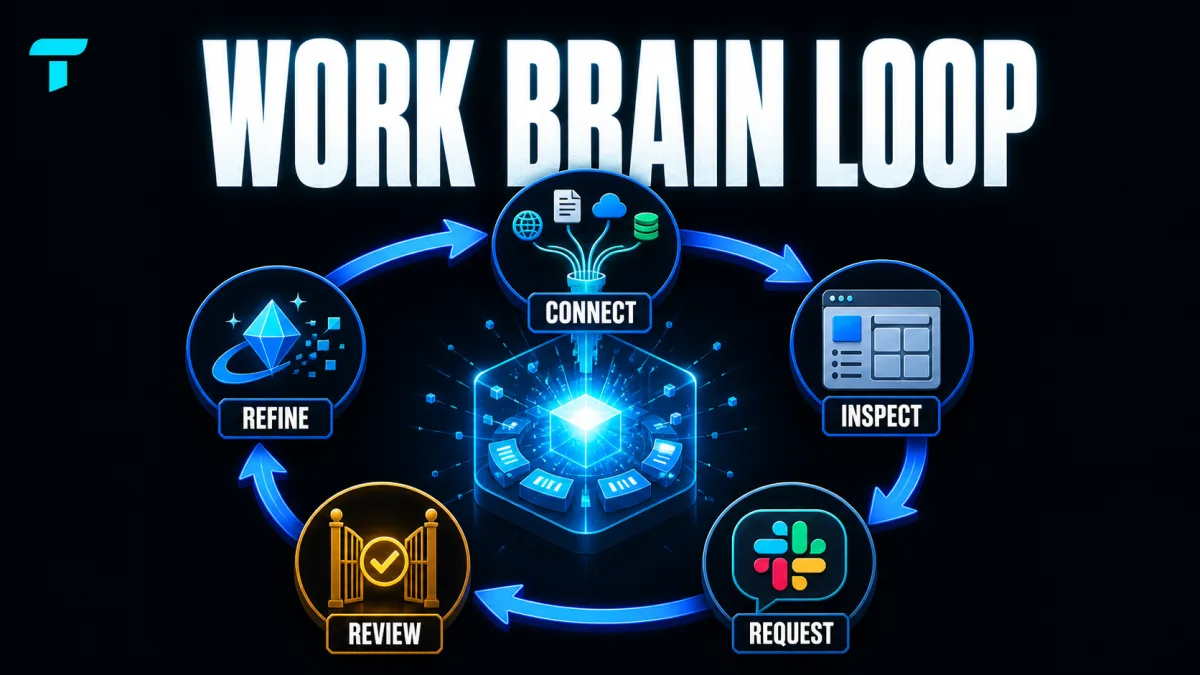
A self-updating work brain with Town is a connected workspace where Slack requests, selected work sources, a visible Wiki, and recurring routines reinforce one another. The source guide from The Rundown University describes a five-step setup: connect Slack, choose sources, inspect Town's Wiki, create a daily review habit, and improve routines one at a time.
Definition: Town's work-brain setup is a reviewed context-and-routine system built around Slack and the sources a user explicitly connects.
Example: A team can ask Town for a status check in Slack, review the response, and collect recurring AI reports in a calendar block for daily inspection.
Key takeaway: The system becomes useful through controlled context and repeated review, not by enabling every automation during onboarding.
Business impact: A visible review loop gives recurring AI output a place to be checked before it becomes an approved action or a trusted part of daily work.
What should a Town work brain contain?
A useful Town work brain has four parts: context, an interface, routines, and review. Context comes from the Slack workspace and selected connections; the browser Wiki makes the resulting profile and work knowledge visible; routines produce recurring outputs; and review catches wrong assumptions before they drive an action. This structure is useful for operators who want repeatable AI assistance without building or hosting an agent themselves.
The design is deliberately narrower than “connect everything.” Town is the named service in this guide, but the broader principle also applies to any AI agent connected to business tools: start with one workflow, restrict permissions, and make outputs auditable before expanding access. For the underlying distinction between assistants and action-taking systems, see what an AI agent is.
Step 1: Connect Town to Slack and start small
Town's first setup step is to create an account, connect the Slack workspace where it will be used, and choose a small starter set of routines. The source guide names Auto-inbox, Morning Briefing, and Meeting Briefing as examples shown during onboarding. Begin with the routine closest to work you already do, because a familiar process gives you a concrete output to judge instead of an abstract promise.
Town's routine settings matter because a routine can contain multiple actions. Auto-inbox, for example, may expose separate options for labeling mail, assisting with scheduling, or drafting replies. Review those options before enabling them, then leave unnecessary actions off. A narrow first routine is easier to inspect, pause, and improve than a bundle of automations with unclear side effects.
Step 2: Give Town only the context it needs
Town's connection step should be treated as a permission decision, not a checklist. The guide lists Notion, Google, Granola, and Calendly as optional sources, but the correct connection set depends on the work you want Town to support. Add only the pages or accounts needed for that workflow, and leave private messages or unrelated sources disconnected.
The practical rule is to separate context access from action authority. A source connection lets Town use information; it does not prove that every resulting briefing or recommendation is accurate. That distinction matches the safer rollout pattern described in our guide to connecting AI agents to CRM, Google Sheets, and Slack: begin with narrow read access, add one low-risk action later, and keep a record of what the system did.
Step 3: Check the Wiki before trusting the output
Town's Wiki is the review surface for the context it has assembled. Open the browser dashboard and inspect the sections Town creates for your overview, goals, projects, profile, notes, and people. Start with the facts most likely to change a routine's result: current projects, responsibilities, communication preferences, and working relationships.
A Town Wiki is ready for a routine only when its relevant sections are accurate enough for the task. If a project is missing, a responsibility is stale, or a profile detail is wrong, treat that section as unfinished context rather than silently filling the gap yourself. This is the same operational discipline that makes internal knowledge search a viable first automation: the source set must be trusted before an AI layer can reliably retrieve from it.
Step 4: Use Slack as the request surface and add a review block
Town's Slack workflow starts with a low-risk question in the town-square channel, tagging @Town when requesting a status check. A useful first request asks what tasks are active and whether any blockers exist. Review that answer before asking Town to create a calendar event, update another tool, or perform any other external action.
The source guide then uses a daily 45-minute review window as the control point for recurring output. Town is asked to find a time, reserve the recurring block, gather reports from AI-assisted research and operational work, and link those reports in the calendar event description. Approve only that requested calendar action, then verify the recurring time and the links it created.
This review block is more important than the calendar format. It turns scattered reports into a repeatable inspection queue, while keeping the human responsible for deciding whether an output is useful or an action is safe. Town may also need approval the first time it performs an action in Slack, so an approved request is part of the setup rather than an exception to it.
Step 5: Improve one Town routine at a time
Town's routine library should be treated as a shortlist, not a mandate to activate every available workflow. Open Routines, see what is already running, and ask Town for a small recommendation based on the context you just reviewed. Choose one suggestion, inspect what Town will read and do, and test it with a low-risk task.
Town's routine earns expansion only after one output survives the daily review. The source guide's final step says to inspect a routine, test it with a low-risk task, and review whether the result is useful. Keep the routine only when Town produces a repeatable benefit; otherwise flag the error, narrow the job, or remove it before adding another.
A safe operating loop for Town
Town's setup can be summarized as connect → inspect → request → review → refine. Connect the smallest useful source set, inspect the Wiki's context, request a low-risk output in Slack, review the result during a dedicated block, and refine one routine before adding another. The loop is useful because each stage creates evidence for the next decision.
Keep external actions behind approval until the scope is clear. The source guide specifically recommends understanding what Town reads, changes, or sends before allowing more autonomous actions. For broader planning, start with work that repeats, has clear inputs and outputs, and can be checked without expensive mistakes.
What to watch in Town after the first week
After a week, inspect Town's Wiki, one Town routine's output, and the Town review block as three separate parts of the system. The source guide recommends repeating that review loop, checking the Wiki context, flagging what is wrong, and keeping only what saves time. If Town's Wiki is inaccurate, fix the context before changing the prompt; if the output is weak, narrow the routine; if the output is useful but never reviewed, improve the schedule or reduce the routine count.
Town's durable value in this guide is therefore not the number of automations it can expose. It is the combination of visible context, explicit permissions, a Slack request surface, and a repeated human review habit. That is the operating model to preserve as the system grows.
Need help scoping a safe first automation workflow? Get in touch with Yowox.
Frequently asked questions
What does Town use to build a work knowledge system?
Town uses a Slack workspace plus the work sources you choose to connect. The source guide names Notion pages, a Google account, Granola meeting notes, and Calendly bookings as optional examples. Town then exposes a Wiki and recurring routines that you can inspect. The important boundary is permission: connect only the pages, accounts, and channels Town needs for the workflow, and leave private or unrelated sources disconnected. A connected source gives Town context; it does not make every generated report correct, so the Wiki and routine output still need review.
Should I turn on every Town routine during setup?
No. The practical starting point is one or two routines tied to work you already repeat, such as an inbox, morning, or meeting briefing. Town's onboarding flow lets you review the actions inside a routine before you enable them, and the guide specifically warns against turning everything on at once. Start with a low-risk output, check whether it is useful, and add another routine only after the first one has earned its place through a result you can inspect.
How do I review Town before allowing it to take actions?
Review Town in three places: the permissions for each connected source, the Wiki sections that describe your work, and the output of one routine. Begin with a read-only or low-risk request in Slack, then inspect what Town reports before approving an action such as creating a calendar event or changing another tool. Keep external actions behind approval until you understand what Town reads, changes, or sends. This staged approach lets you find incorrect context before it reaches a briefing, report, calendar, or other connected system.
How does the daily review block make the system dependable?
A daily review block gives recurring reports a deliberate destination instead of letting them disappear across Slack, calendars, and separate AI tools. The guide's example asks Town to find a recurring 45-minute window, gather reports from research and operational tasks, and link them in the calendar event description. You still approve the requested calendar action and verify its timing and links. The durable habit is not a fixed schedule or a promise of perfect automation; it is checking the context, inspecting one output, correcting errors, and keeping only routines that save time.
Alex
Founder & Lead AI Writer
Alex is the founder of Yowox and lead AI writer since 2024, breaking down complex information into clear, actionable insights for thousands of readers every day. Alex has built AI automation systems for businesses since 2024, focusing on AI agents, workflow automation, and business process optimization.
Save hours. Save thousands.
Practical guides, real workflows, and the latest AI and automation news that matters — straight to your inbox.