 By Alex
 Gemini Chrome for Android adds a paid task agent
Google is bringing Gemini in Chrome to Android users in the US and extending auto browse to Pro and Ultra subscribers for multi-step web tasks.
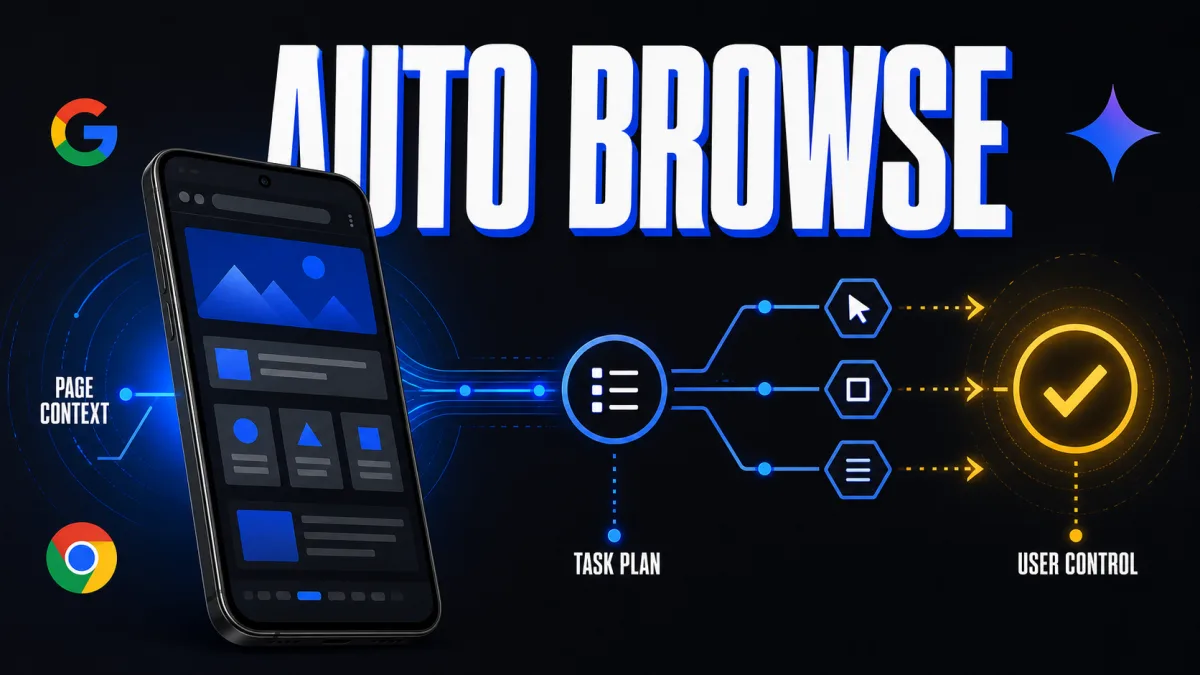
9to5Google reports that Google has finished rolling Gemini in Chrome out to Android users in the United States, while auto browse is reaching Google AI Pro and Ultra subscribers on the same platform. The Android release moves Gemini from a page-reading assistant toward a browser agent that can work through multi-step tasks, so users should distinguish broad assistant access from the narrower paid tier for actions.
Definition: Gemini in Chrome on Android is Google’s browsing assistant for asking questions about the current page, summarizing content, connecting selected Google apps, and creating or editing images.
Example: A user can open a long article, ask Gemini to summarize it, or ask auto browse to compare options and organize a travel task across several websites.
Key takeaway: Gemini in Chrome is broadly rolling out to Android users in the US, but auto browse remains gated by subscription and eligibility.
Business impact: The rollout puts a task-performing browser agent on mobile, while confirmations, permissions, and account limits still determine which work can be delegated safely.
What does Gemini in Chrome add on Android?
Gemini in Chrome gives Android users an assistant inside the browser rather than requiring a separate chat window. Google says the feature can summarize long articles, answer questions about the page a user is viewing, connect with apps such as Calendar and Keep, and customize or generate images through Nano Banana; the practical takeaway is that page context and selected Google services can stay in one mobile browsing session. Google’s announcement describes the rollout as available to all Android users in the US, although staged availability can still vary by account.
Gemini in Chrome can be opened from the Gemini icon or the three-dot menu in Chrome’s top bar, according to Google’s announcement. 9to5Google also reports that users can add the current page to a prompt, disable that behavior in Settings, and leave the Gemini sheet docked at the bottom of the screen; users should therefore check both the entry point and page-context setting before treating the assistant as a fully automatic reader.
For readers comparing this behavior with a conventional chatbot, the distinction is practical: an AI agent can pursue a goal through tools and multiple steps, while a chatbot generally stops after producing a response. Gemini in Chrome now combines both modes on Android, so a page summary is a conversational use case and auto browse is the action-oriented one.
How does auto browse work on an Android phone?
Auto browse lets Gemini in Chrome carry out a multi-step web task after the user describes the desired outcome. Google’s help documentation says Gemini first shows a plan, asks the user to check the prompt, page context, and personal information, and then starts only after the user taps the confirmation control; the takeaway is to review the plan before granting the agent permission to act. See also Gemini Spark runs web errands in desktop Chrome.
Auto browse can compare products, search for deals, find travel accommodations, make restaurant reservations, schedule appointments, update recurring online orders, and organize travel. Google’s documented examples show that the feature is aimed at coordination across websites rather than a single lookup, so businesses evaluating browser agents should test reversible research and planning tasks before delegating purchases or other consequential actions.
Once a task is running, Gemini in Chrome can work in the relevant tab while the user returns to other phone activity. Google’s documentation also provides controls to pause, resume, stop, or take over the task; the concrete operating rule is to keep a human ready to intervene whenever a site changes, the request is ambiguous, or a step requires personal judgment.
Who gets auto browse, and what limits apply?
Auto browse is narrower than Gemini in Chrome’s general Android rollout. Google’s Chrome help page says Android users need to be at least 18 and in the US, use English on the device, sign in to Chrome, update to the latest Chrome version, use Standard or Enhanced Safe Browsing, and have a personal Google AI Pro or Ultra subscription; the practical takeaway is that an eligible account still depends on device, browser, language, safety, and rollout conditions. Related reading: Chrome fixed 1,072 security bugs across two June releases.
Google’s documentation lists different daily request limits for the two paid tiers: up to 20 multi-step requests per day for AI Pro and up to 200 for AI Ultra. Those limits describe request capacity, not a promise that every task will complete successfully, so teams should measure useful completions, human corrections, and failed or paused tasks rather than treating plan access as equivalent to dependable automation.
The same documentation says auto browse is not available in Gemini Live chats or Gemini in Chrome on iPhone and iPad, and that school or work accounts may require administrator enablement. The immediate scope is therefore specific: Android, the US, English-language device settings, and eligible accounts—not a general release across every Chrome surface or region.
Why do permissions and prompt injection matter?
Auto browse can access the same sites a user can access, including sites where the user is signed in, and Google warns that it may share relevant personal information with websites it chooses for a task. Google also describes prompt injection as hidden or malicious instructions in web content that can steer an agent toward an unintended action; the takeaway for operators is to treat browser content as untrusted input and keep credentials, connected apps, and task scope tightly bounded.
Google says Gemini in Chrome is designed to detect known threats and request confirmation before some sensitive actions. Its help documentation lists review points such as starting a task, sending communications, modifying data, submitting forms, scheduling events, and accessing highly sensitive financial or health data, while some steps—such as finalizing a transaction or accepting terms—may require the user to take over. These controls reduce exposure but do not guarantee safety, so the five-layer AI agent security model remains a useful way to think about interaction, permissions, integrations, models, and code.
Google’s own warning is consequential: auto browse is experimental, can misunderstand a request or website, and can produce unintended results. For business users, the safest starting point is a narrow workflow with reversible actions, explicit approval for external changes, and logs that make it possible to reconstruct what the agent saw and did.
What changes for mobile automation?
Gemini in Chrome’s Android rollout makes the browser itself a more direct entry point for agentic work. The source announcement pairs everyday browsing help with examples such as parking, recurring orders, and travel, while the subscription gate and confirmation design keep higher-impact actions behind eligibility and user control; the practical implication is that mobile automation is moving from “ask about this page” toward “help complete this web task.”
The release does not remove the hard parts of browser automation. Websites change, instructions can conflict, personal data can cross site boundaries, and a successful-looking task can still contain a wrong quantity, reservation, or form submission. Businesses considering similar agents should start with low-risk research, comparison, and draft workflows, then expand only after measuring correction rates and defining a clear human takeover path.
For Android users in the US, the immediate news is simple: Gemini in Chrome is becoming a standard browser surface, while auto browse adds a paid, permissioned path to multi-step web work. The next question is not whether the browser can click through a task, but whether the task is bounded well enough that a person can verify the plan, intervene at the right moment, and remain accountable for the outcome.
Frequently asked questions
Who can use Gemini in Chrome on Android?
Google is rolling Gemini in Chrome out to Android users in the United States. The assistant can summarize pages, answer questions about the page being viewed, connect with supported Google apps such as Calendar and Keep, and support image creation or editing through Nano Banana. Availability is still a rollout rather than a guarantee that every account receives the feature at the same moment. Work and school accounts may also depend on administrator settings.
Who can use auto browse on Android?
Auto browse is available to eligible Google AI Pro and Google AI Ultra subscribers using Android in the United States. Google’s current requirements include being at least 18, using English on the device, signing in to Chrome, updating Chrome, and using Standard or Enhanced Safe Browsing. Google says the feature is gradually releasing, so an eligible subscriber may still need to wait for access.
What can auto browse do in Gemini in Chrome?
Auto browse can handle multi-step web tasks under a user’s direction. Examples include comparing products, finding travel accommodations, making restaurant reservations, scheduling appointments, updating a recurring order, and organizing parts of a trip. Gemini first presents a plan for review, then works through the relevant sites. Users can pause, stop, or take over the task when a step needs personal attention.
Does auto browse complete sensitive actions without permission?
Auto browse is designed to ask for review or confirmation before some sensitive actions, including sending communications, submitting web forms, scheduling events, or accessing highly sensitive financial or health data. Google also warns that auto browse is experimental, can make mistakes, and may share relevant personal information with sites it visits. Users remain responsible for monitoring tasks and should treat confirmation prompts as control points, not as a replacement for oversight.
Alex
Founder & Lead AI Writer
Alex is the founder of Yowox and lead AI writer since 2024, breaking down complex information into clear, actionable insights for thousands of readers every day. Alex has built AI automation systems for businesses since 2024, focusing on AI agents, workflow automation, and business process optimization.
Save hours. Save thousands.
Practical guides, real workflows, and the latest AI and automation news that matters — straight to your inbox.